
Export Canva template
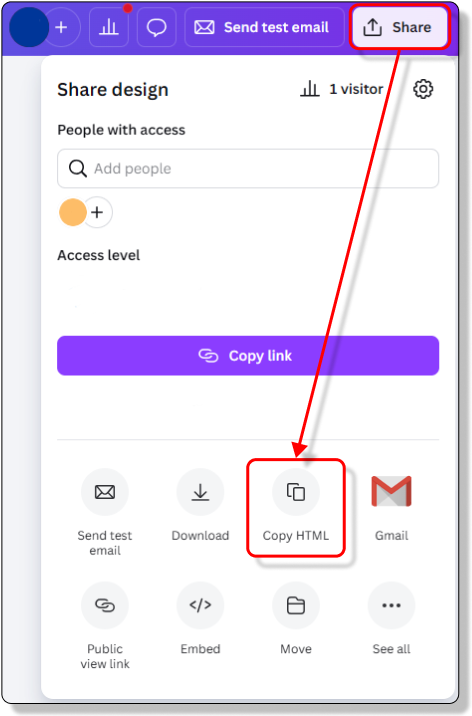
In Canva, click Share → Copy HTML.
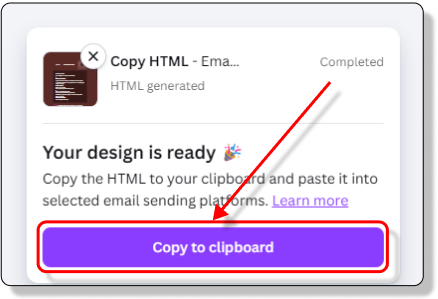
Once the HTML are generated, click Copy to Clipboard
Import the HTML into DinnerBooking
Open DinnerBooking.
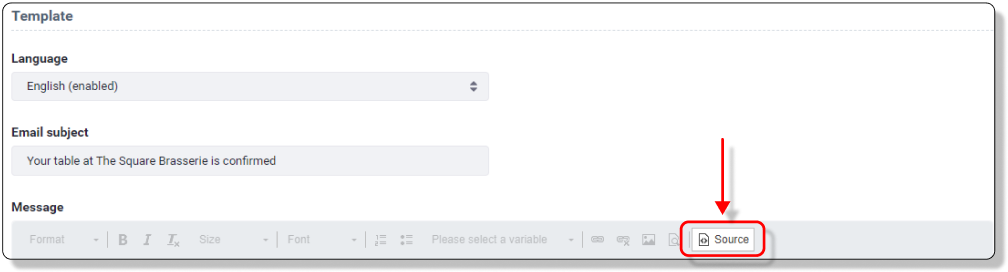
Navigate to your Email Template.
Open the Source (HTML editor).
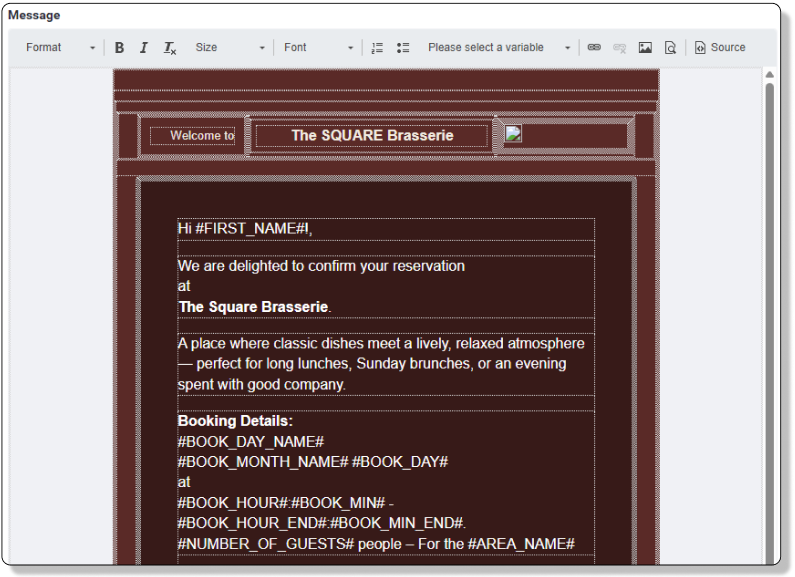
Delete the existing HTML and paste your new HTML or paste your new HTML directly on top of it to replace everything.
– The template must be fully replaced, not mixed with the default content.
Click Source again to return to normal view.
Updating Buttons with DinnerBooking Links
If your Canva template includes buttons:
Open the Source (HTML) again in DinnerBooking.
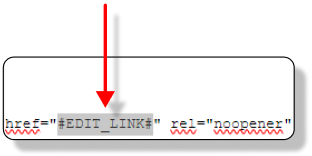
Find the button’s link
Replace the URL with the correct DinnerBooking hashtag-coded link values.
See the different options here
Newsletter Templates and Unsubscribe Link
When creating a newsletter in DinnerBooking, it’s important to know that newsletter templates cannot be saved with a built‑in unsubscribe link. This is intentional, as the unsubscribe link must always be dynamically generated for each individual recipient.
Adding the Unsubscribe Link in the HTML
To ensure the unsubscribe option works correctly:
- Open your newsletter’s HTML Source
- Locate the section where the unsubscribe text or button should appear.
- Insert the following placeholder exactly as shown:
#UNSUBSCRIBE_LINK#Example Usage
If you have a text link:
HTML
<a href="#UNSUBSCRIBE_LINK#">Click here to unsubscribe</a>Important Notes
- The unsubscribe link must not be hard‑coded — always use the placeholder.
- The placeholder works only inside the DinnerBooking email editor.
- The link will not display correctly in the preview but will work in the actual sent emails.