
Offer a discount with Campaign Codes
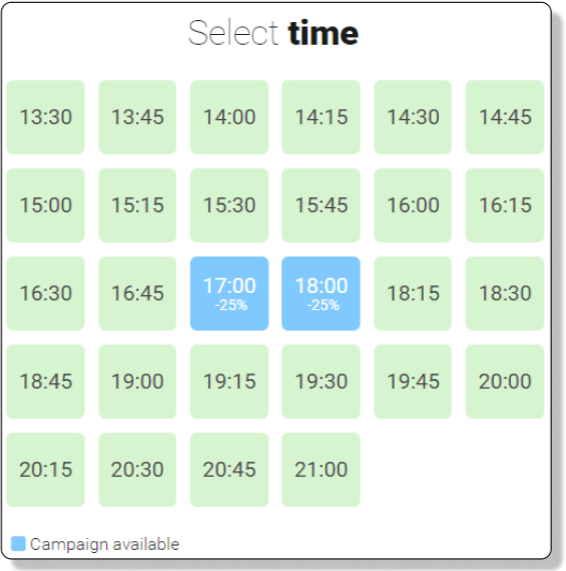
Give your guests the option to enter a campaign code and see available times for discounted bookings.
In the online booking calendar, guests can then choose between your regular setup and any special campaign times.
To get started, go to Online Booking > Campaign Codes.
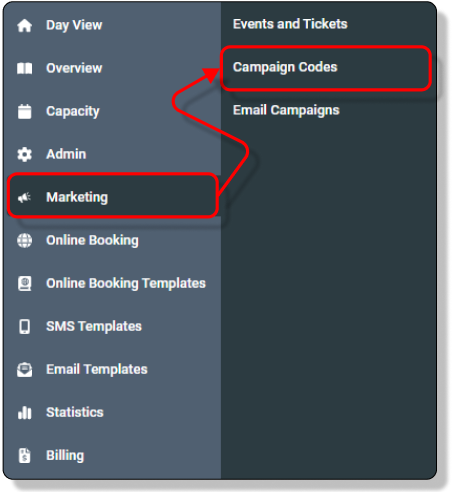
How to create a Campaign Code
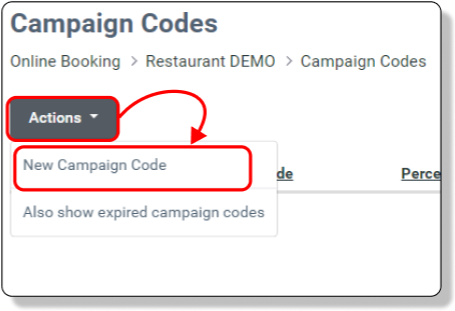
1. Create a New Code
Click Actions → New Campaign Code, as shown in the example below.
2. Set Up the Campaign Code
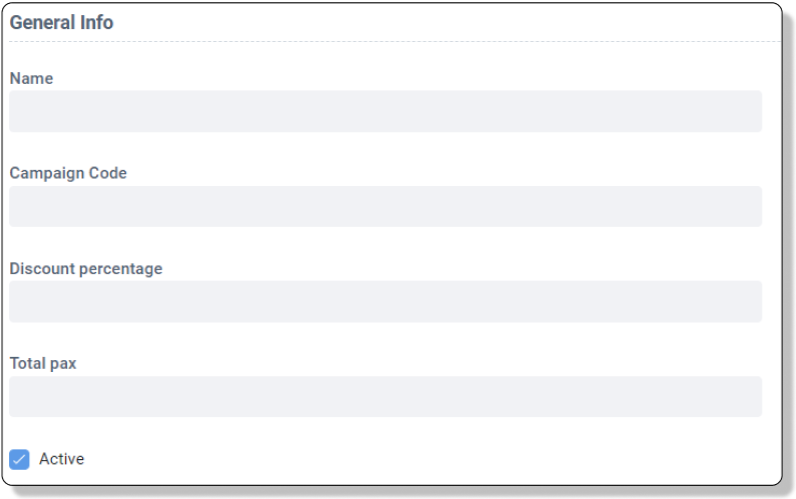
Active: Tick the checkbox to activate the campaign.
Internal Name: Add a name only you will see. This helps you find and edit the campaign later.
Code: Enter the code guests should use to get the discount — e.g. DinnerBooking25.
Discount: Set the discount percentage (e.g. 25 for 25%).
Guest Limit: Define how many guests the campaign applies to — e.g. 100 for the first 100 guests.
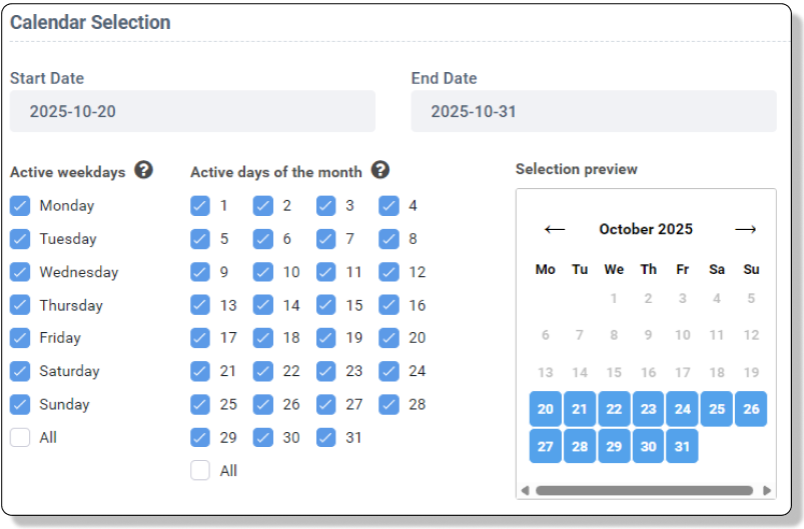
Calendar Rule
- Start Date: The first date the campaign should be available.
- End Date: The last day of the campaign.
Check the weekdays the campaign should apply to.
For example, if you only want it to run on Fridays, make sure only Friday is selected.
You can also select specific days of the month — for instance, only the 1st day of each month.
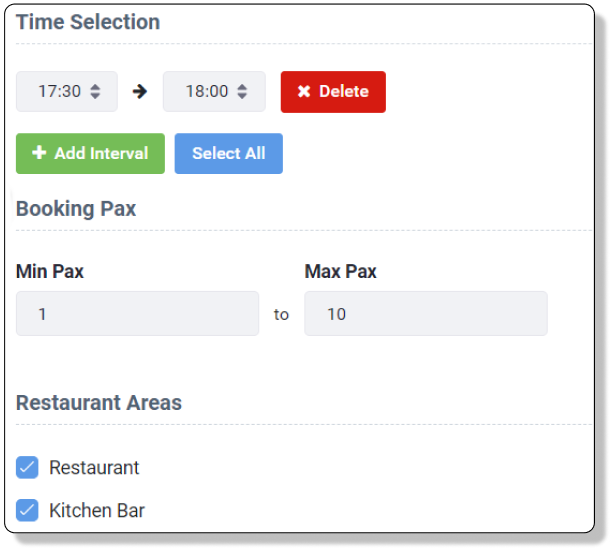
By default, the campaign follows your regular Opening Hours capacity, but you can narrow it down to specific times.
In the example below, the campaign is only available between 17:30 and 18:00.
You can also choose whether the rule applies to all bookings or only to groups of a certain size — for example, only bookings of 4 guests or more.
If your restaurant has multiple areas, you can specify whether the campaign should apply to all areas or selected ones.
Please contact DinnerBooking at support@dinnerbooking.com to learn more about possibilities and prices